
LifeRing Verifications 101 Walkthrough
Managing Your Meeting Attendance Verifications
We've created the following step-by-step walkthrough of the LifeRing meeting attendance verification process. Below, you'll find screenshots guiding you through setting up an account plan, how to locate verification codes, and examples of actual meeting attendance verification notices.
- Verification Management Account Setup
- Verification Management
- Resolving Common Issues
- Additional Resources
Meeting verification is an excellent tool for anyone in recovery, whether you're embracing accountability for yourself or fulfilling requirements from a third party. This simple process can be a powerful way to document your commitment to recovery, and serve as a record of your progress.
To request a meeting verification, please follow the guidelines below.
.
Verification Management Account Setup
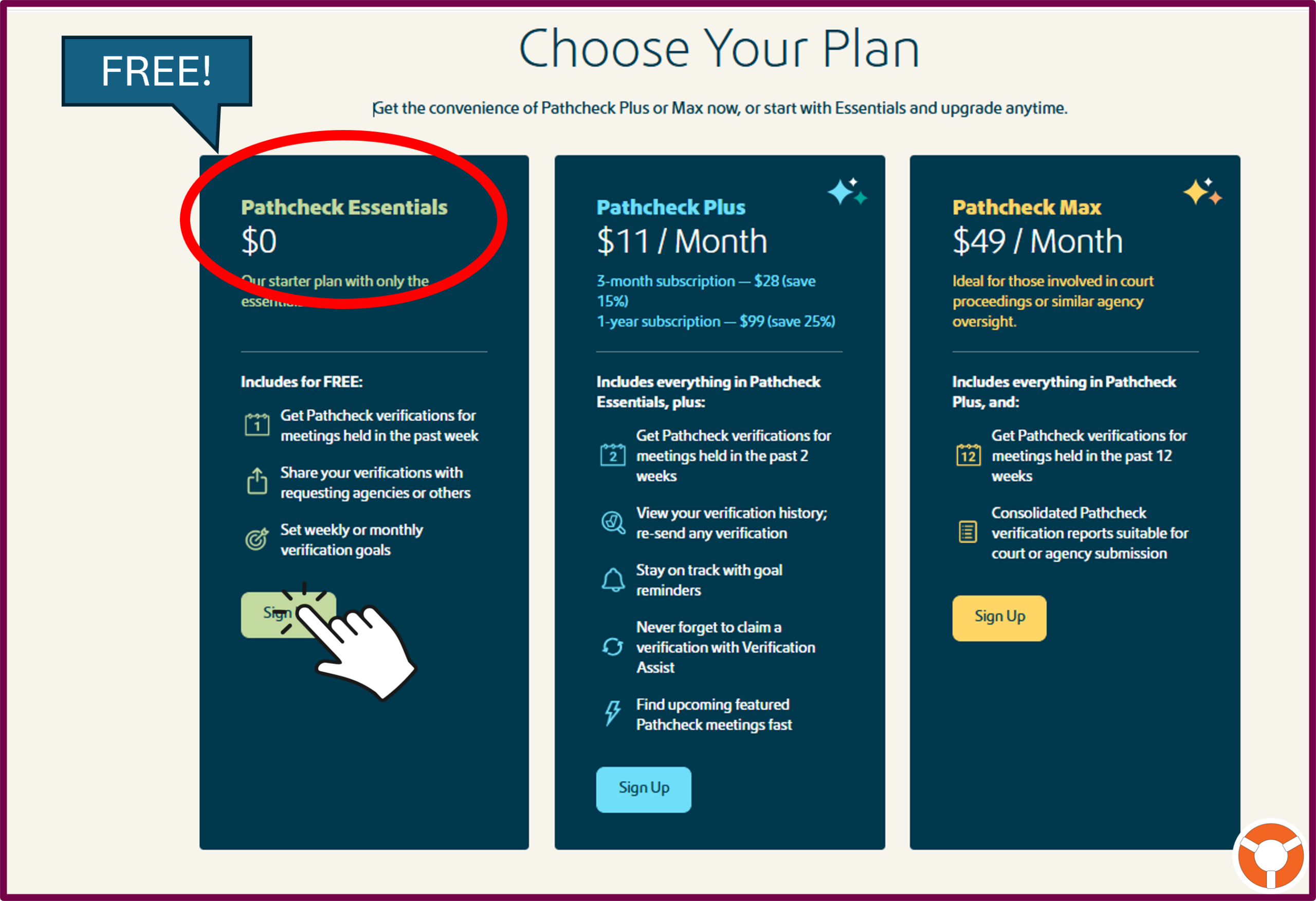
LifeRing uses an outside vendor to manage our meeting calendar and our verification process. In order to manage your verifications, you must first sign up for a Pathcheck verification plan.
This service is free if you request verifications within 7 days of the meeting. If you need verifications for meetings held later than that, Pathcheck offers a couple of paid options you can explore.
- Sign up for a Pathcheck Verification Reporting Plan:

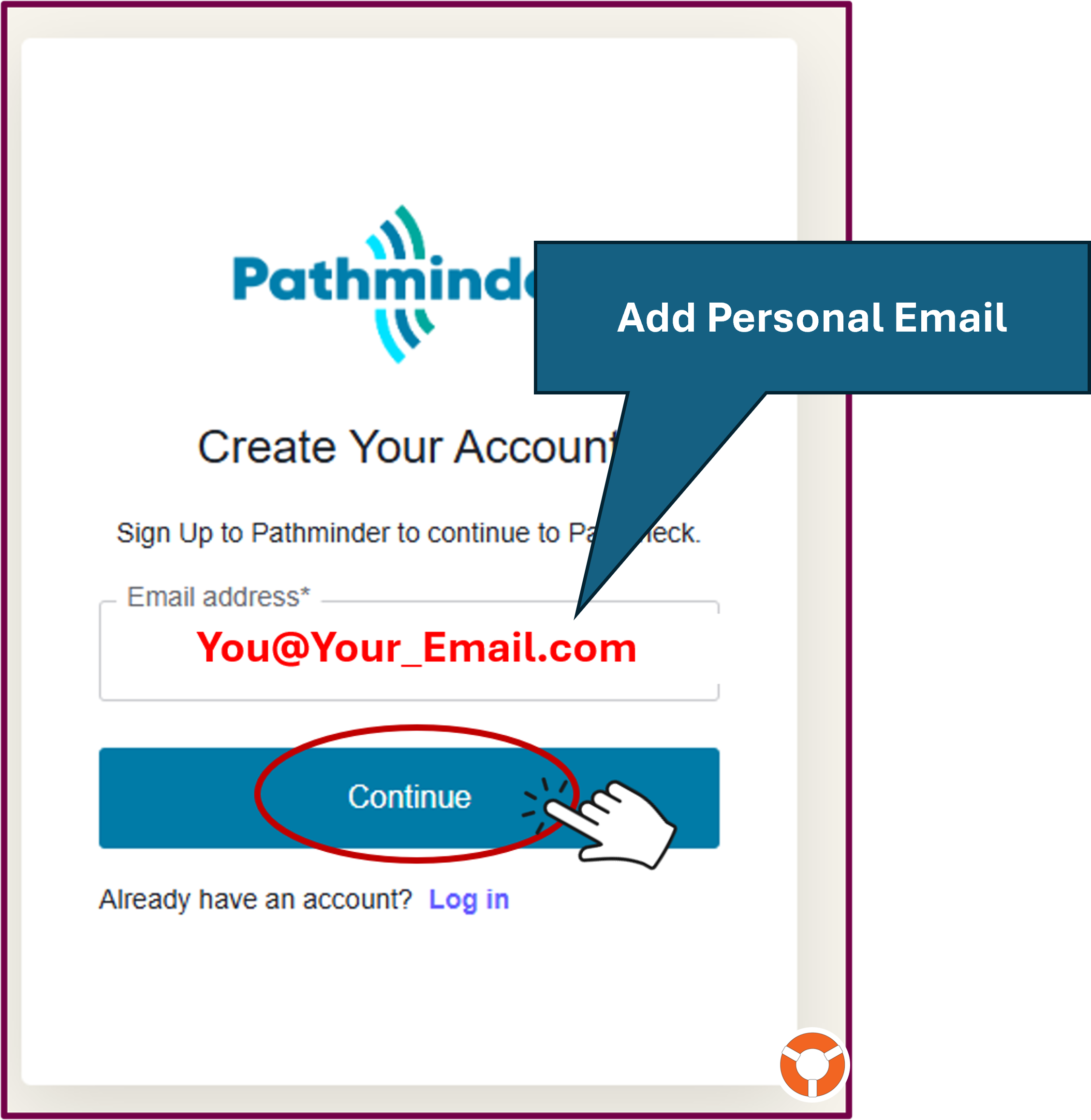
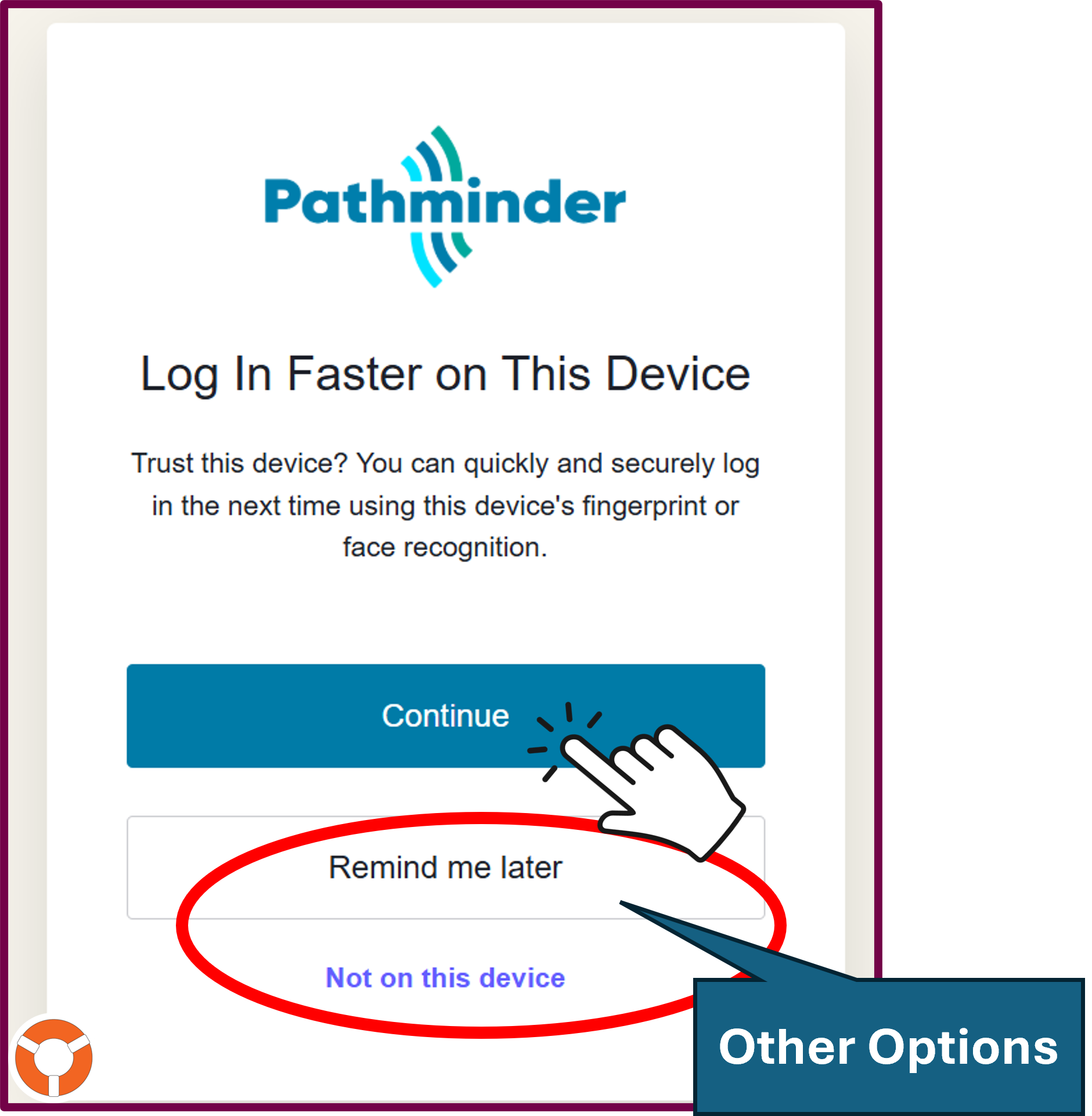
- Add your contact information, then click “Continue”: This will prompt an email from Pathminder with your one-time 6-digit verification code. This is sent to the email address you added here:

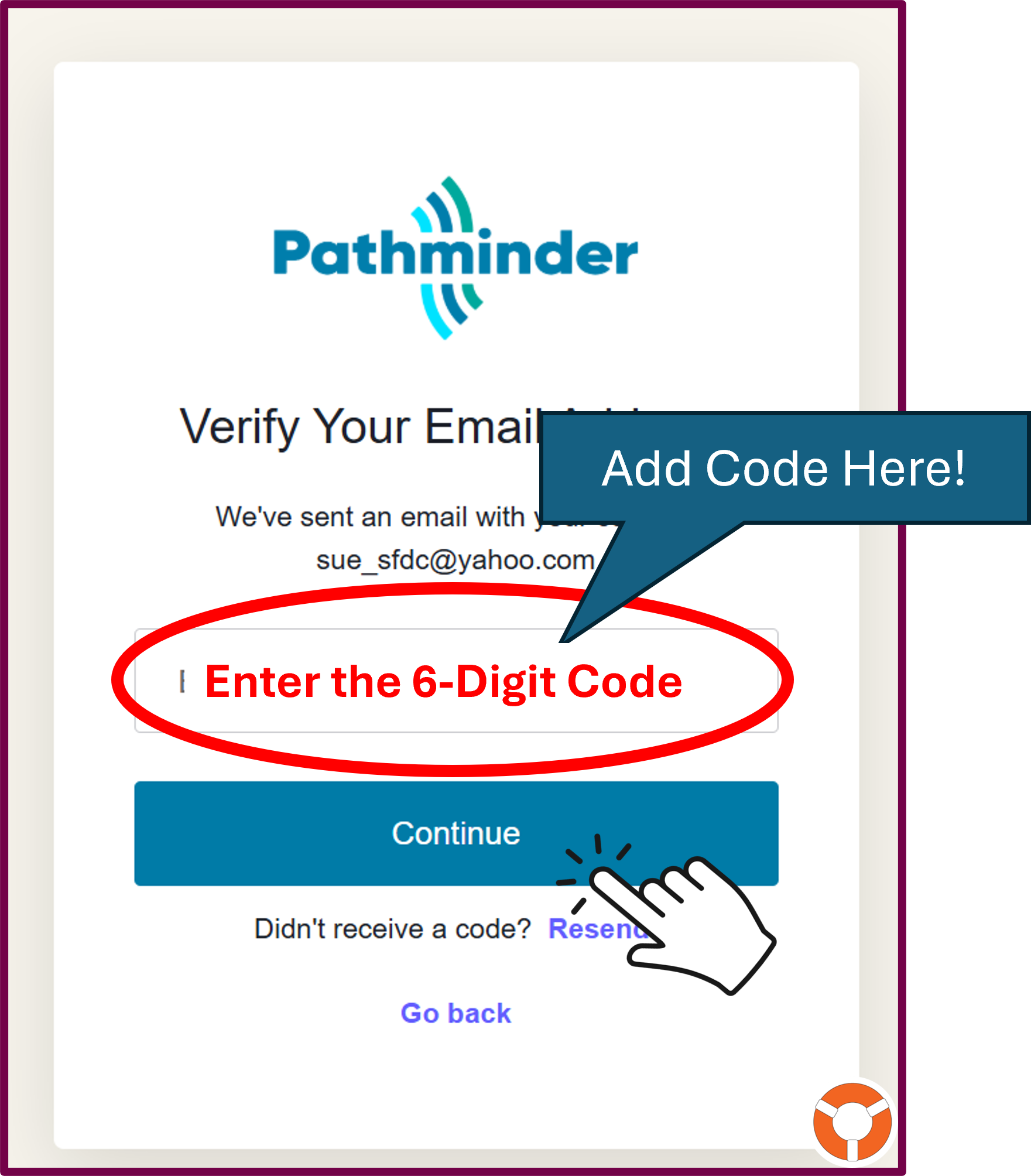
- Go to your email account and copy the one-time 6-digit code, then add here:

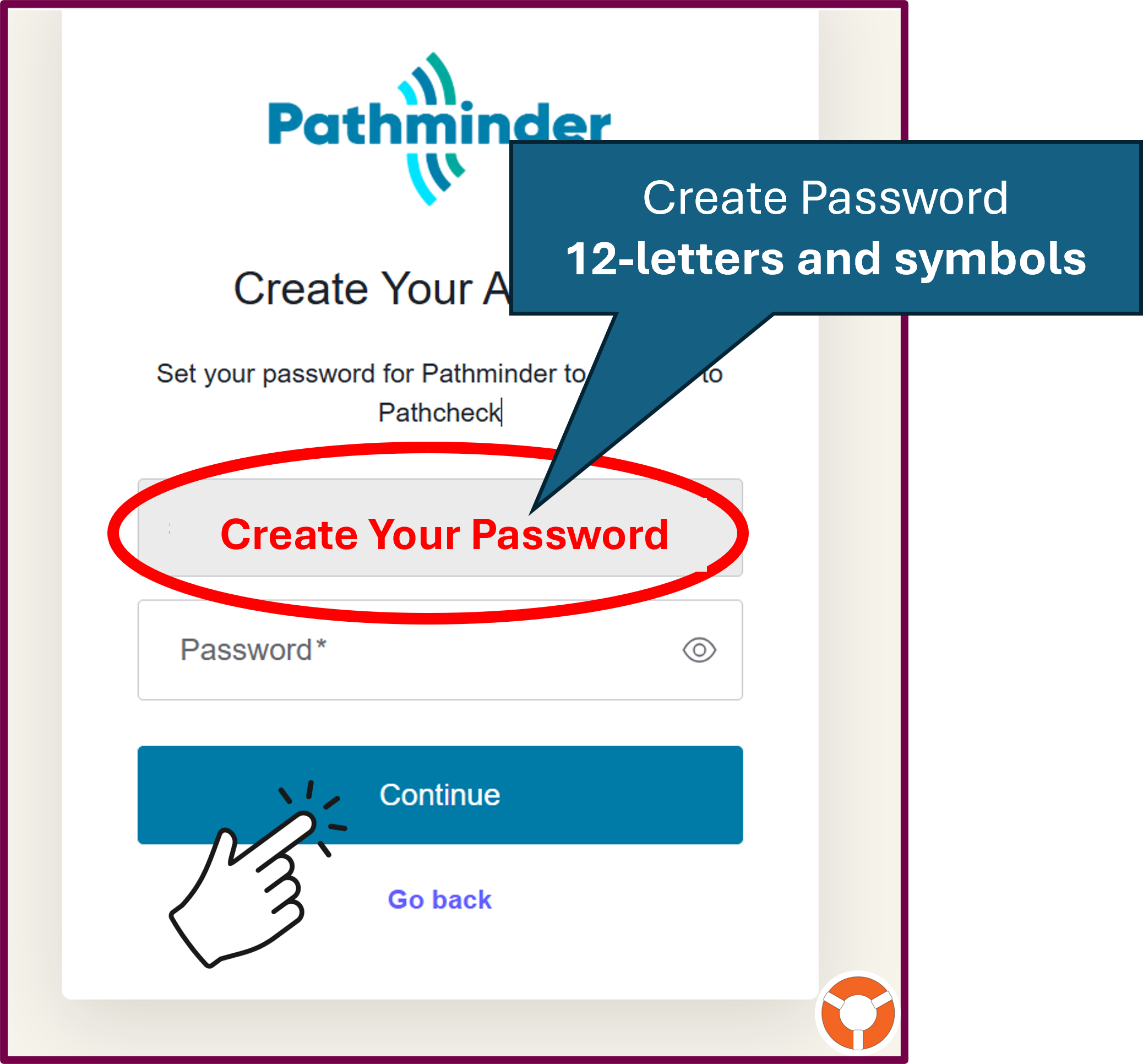
- Create your account password:

- Click to continue:

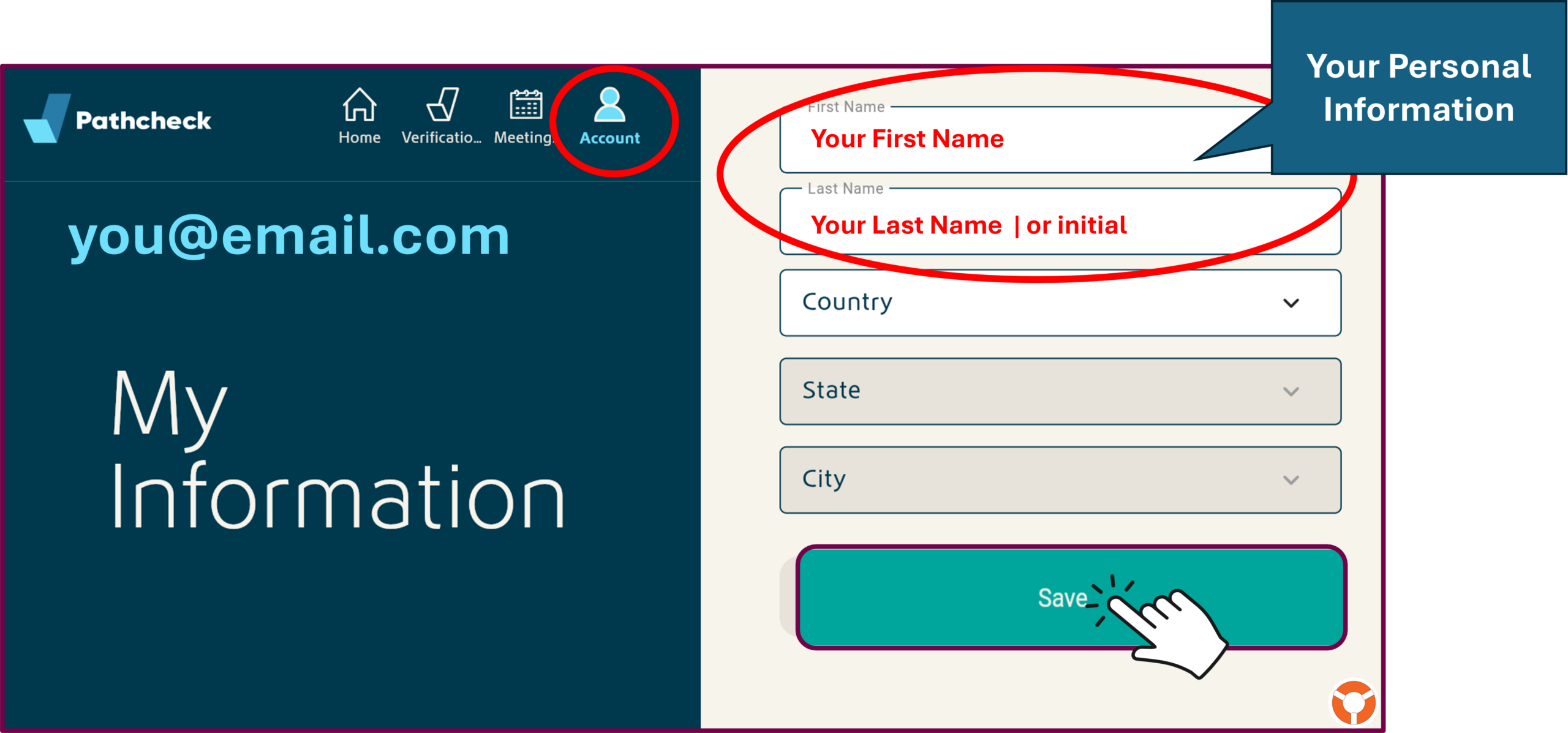
- Set up your Pathcheck account information:

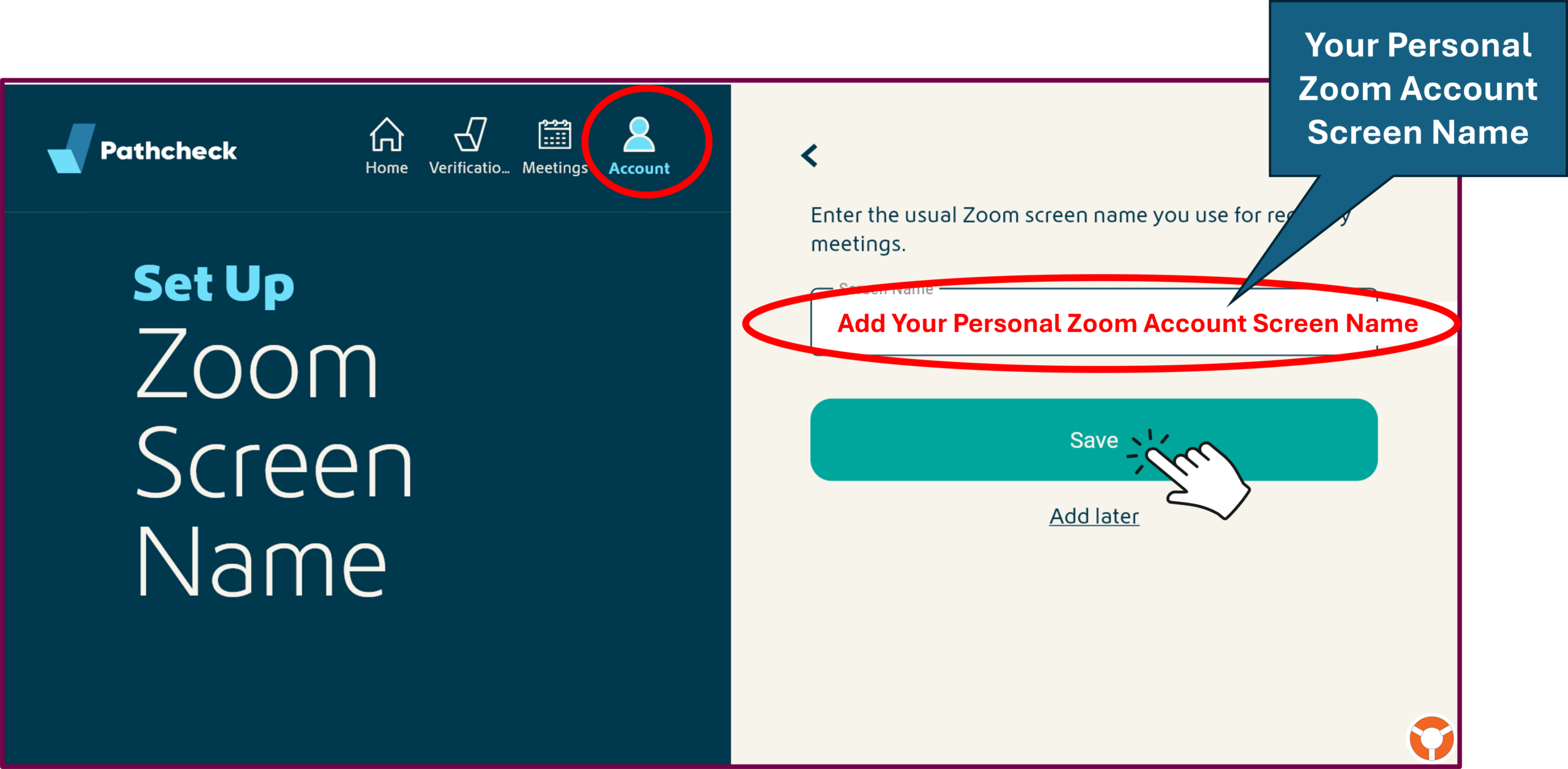
- Add the screen name you use to log into the meeting:

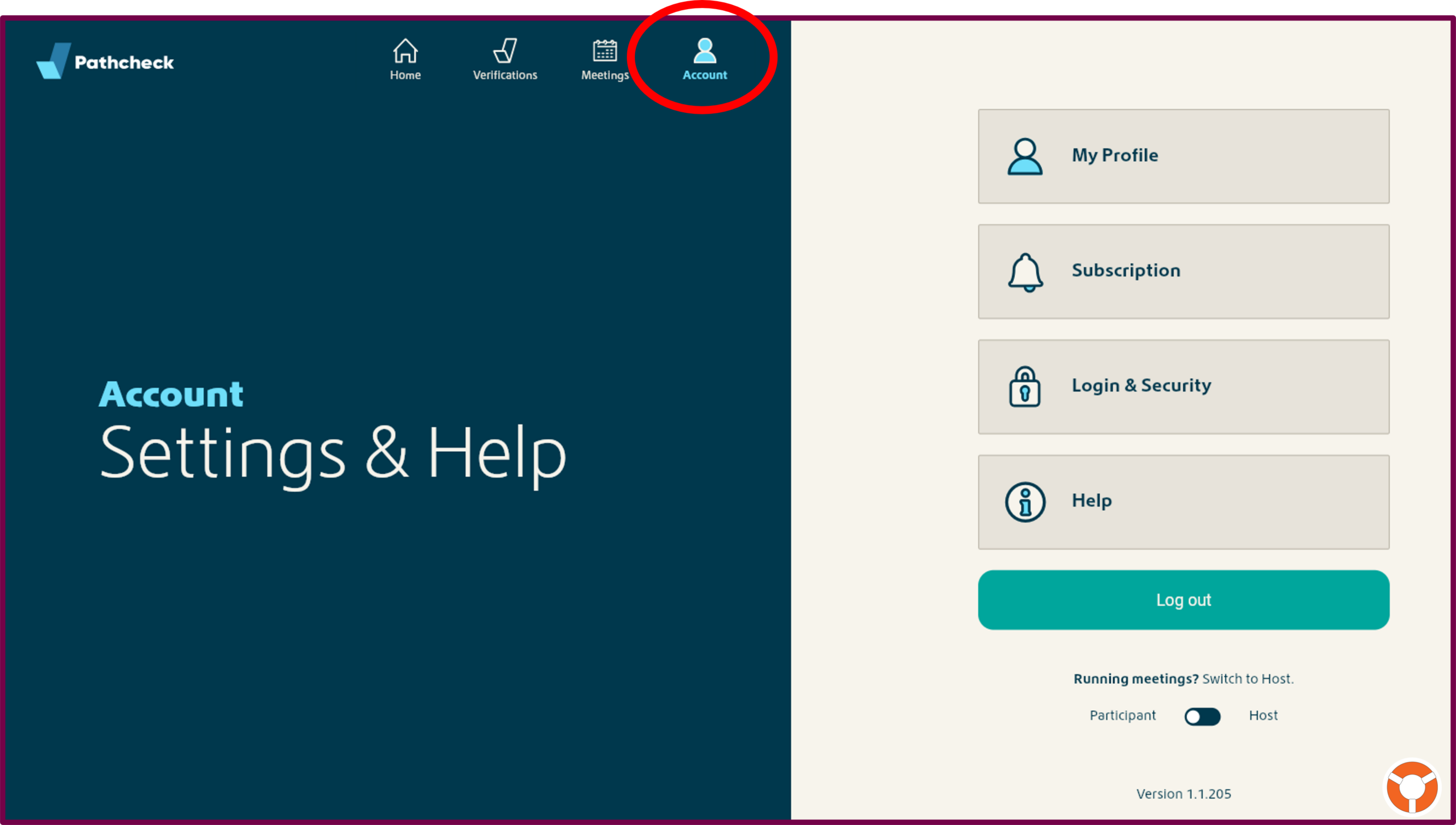
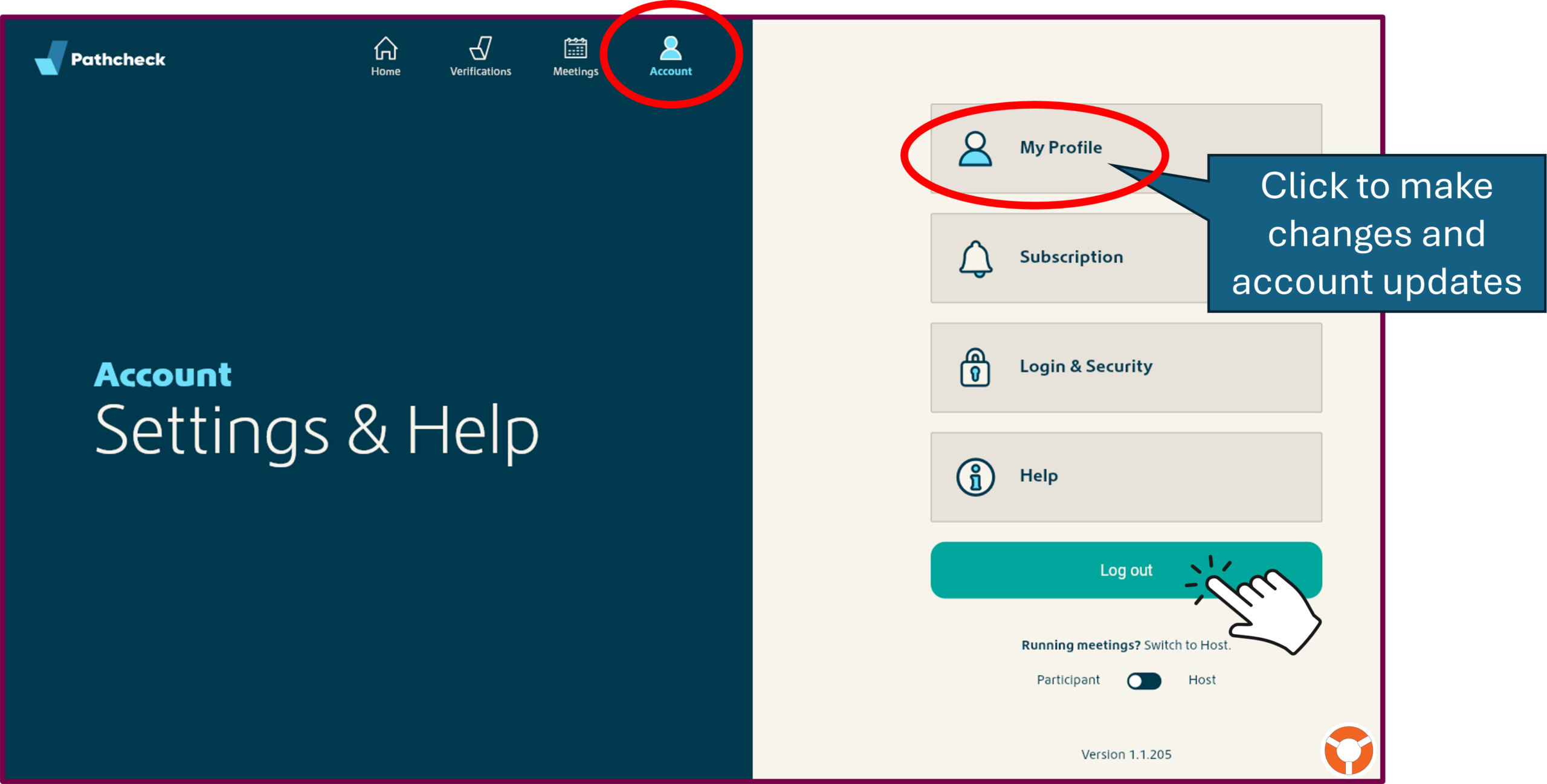
- Congratulations! This is your Pathcheck Verification Account!

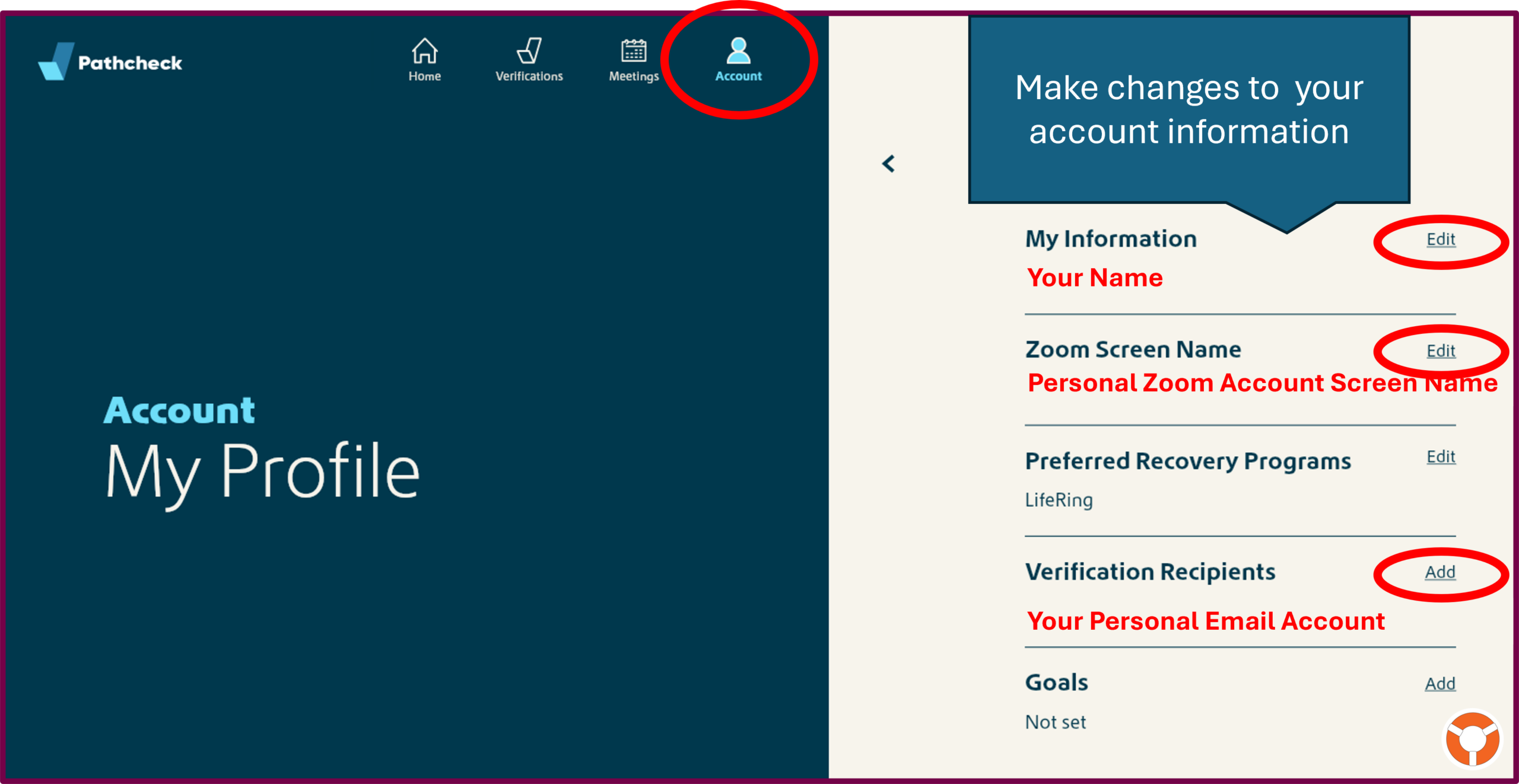
- You can make changes to your personal information:

- You can make changes to your identification information:

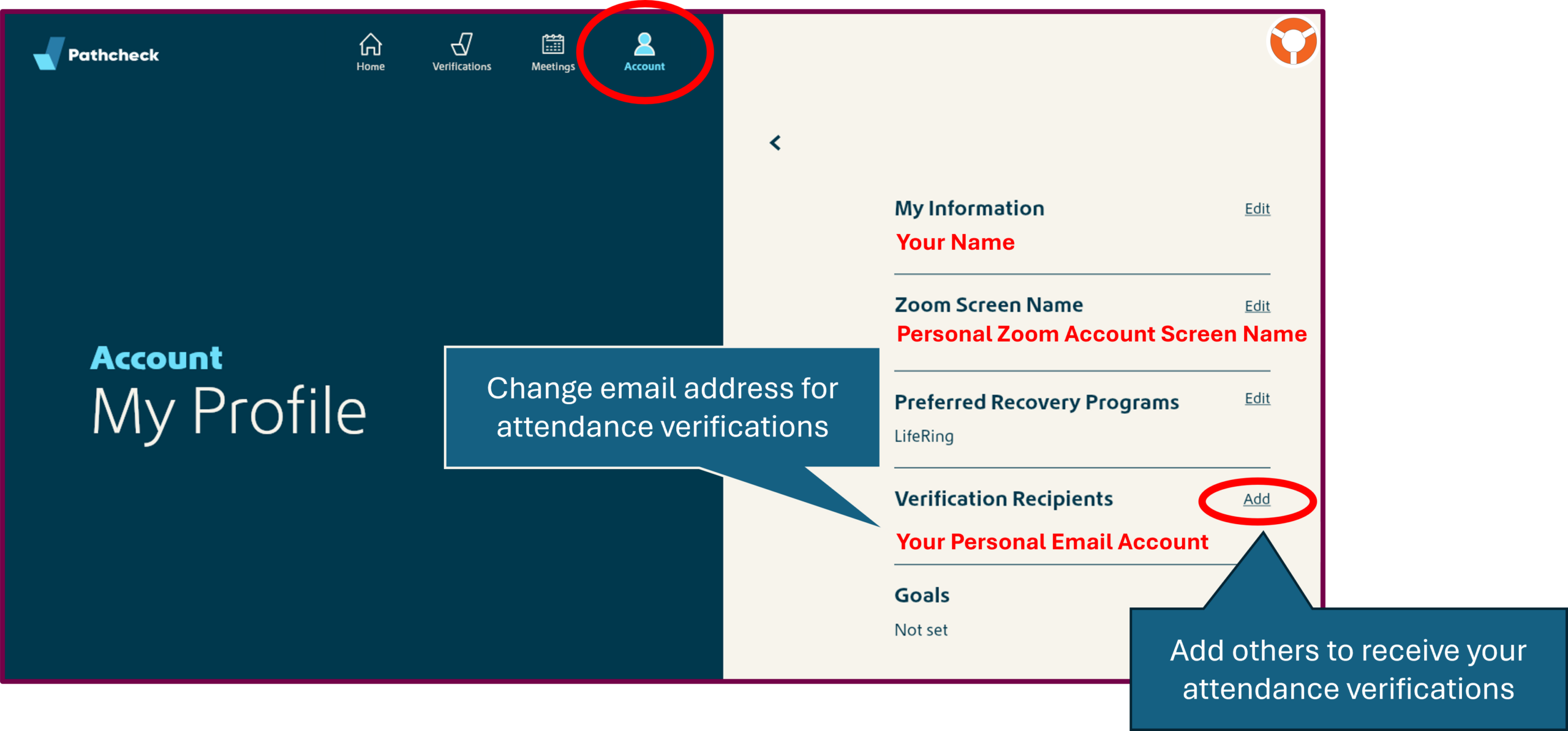
- You can change your email address where verifications are sent and add others you want to receive your verification confirmations.

.
Verification Management
Congratulations! You’re all set to submit a meeting attendance verification request!
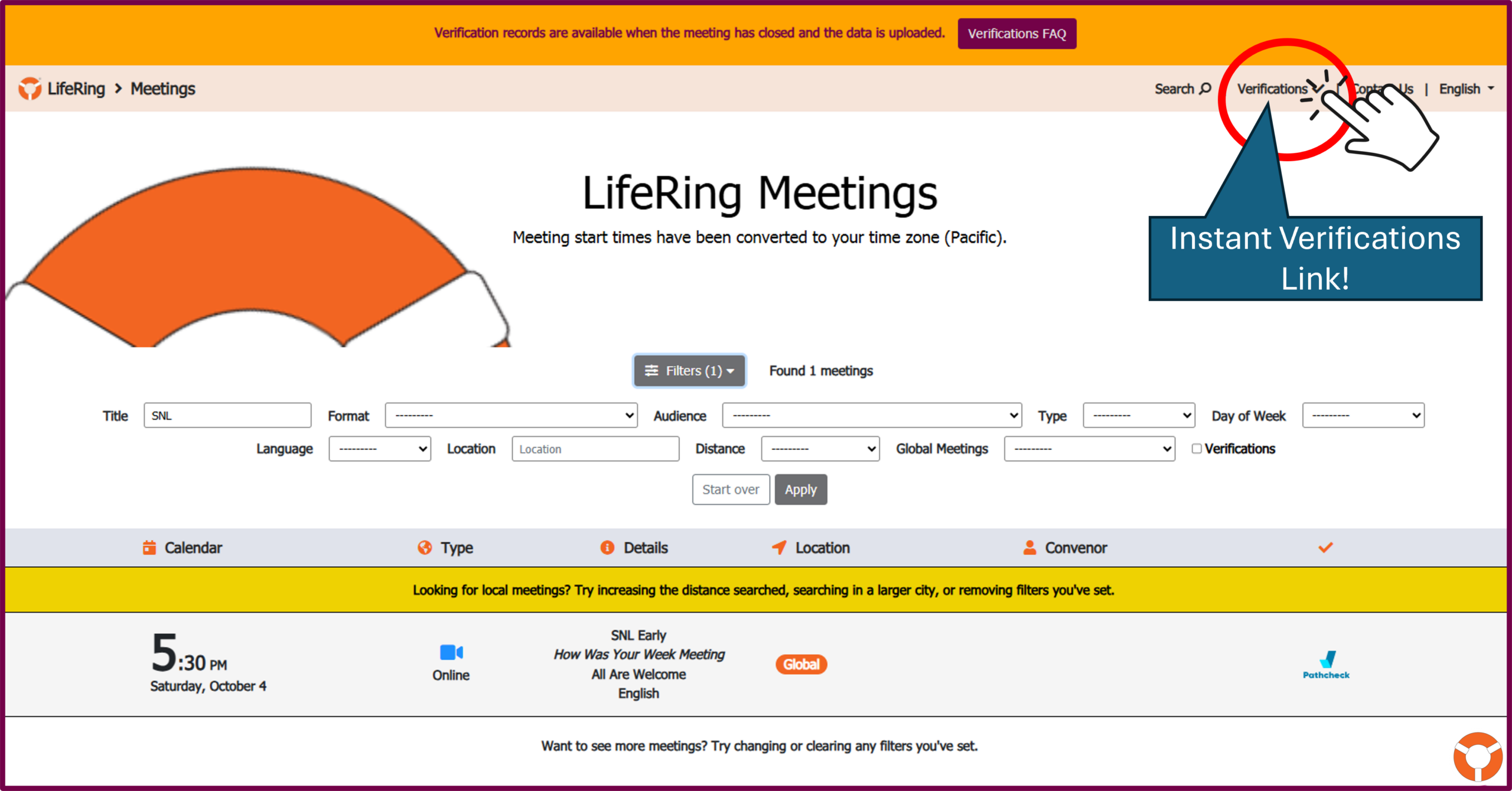
The easiest way is to use the LifeRing Instant Verification form.
- You can find the LifeRing Instant Verification form at the top of every LifeRing Meetings Calendar page:

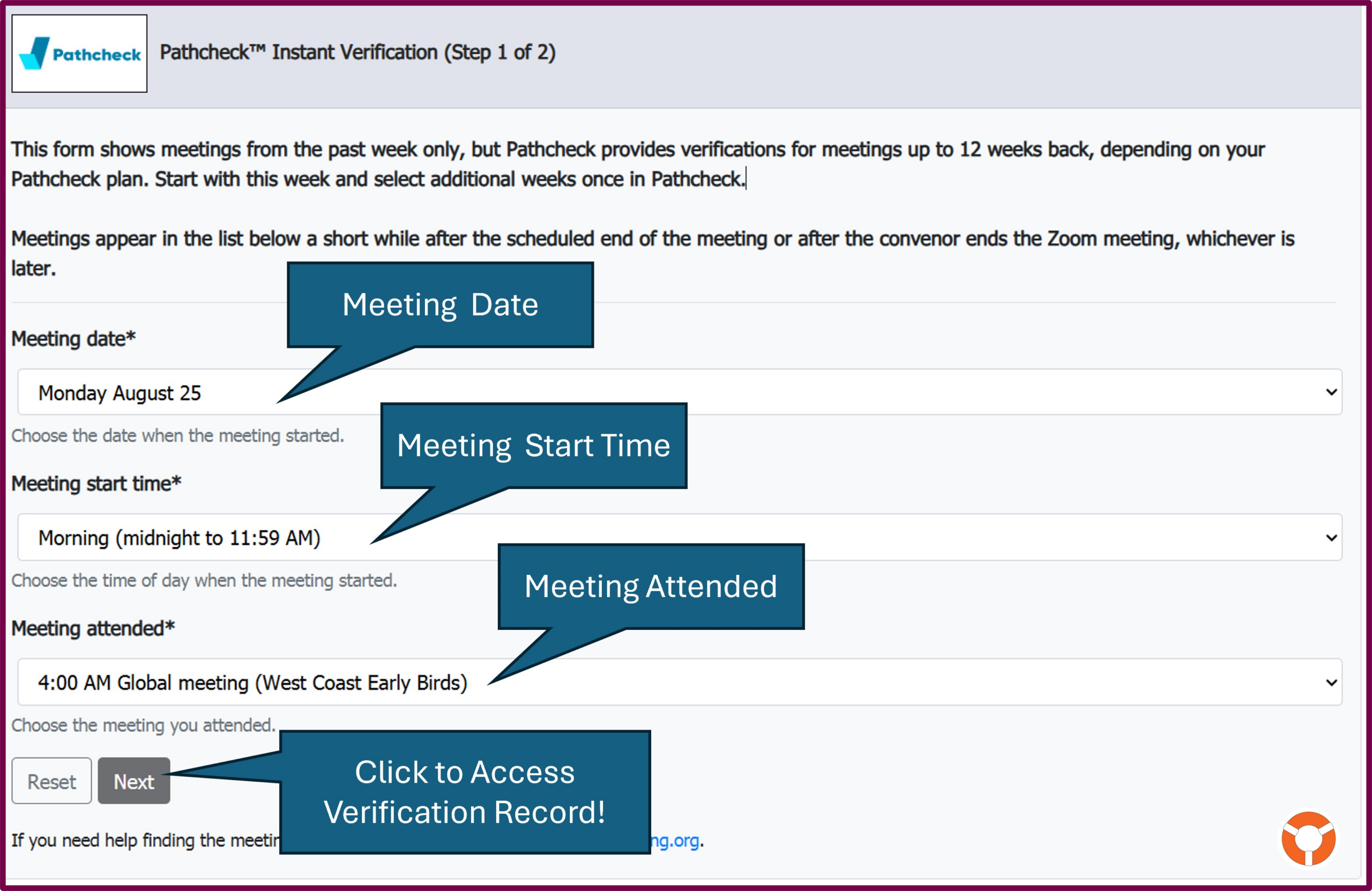
- Use the Instant Verification search form drop down menus to find the meeting you joined:

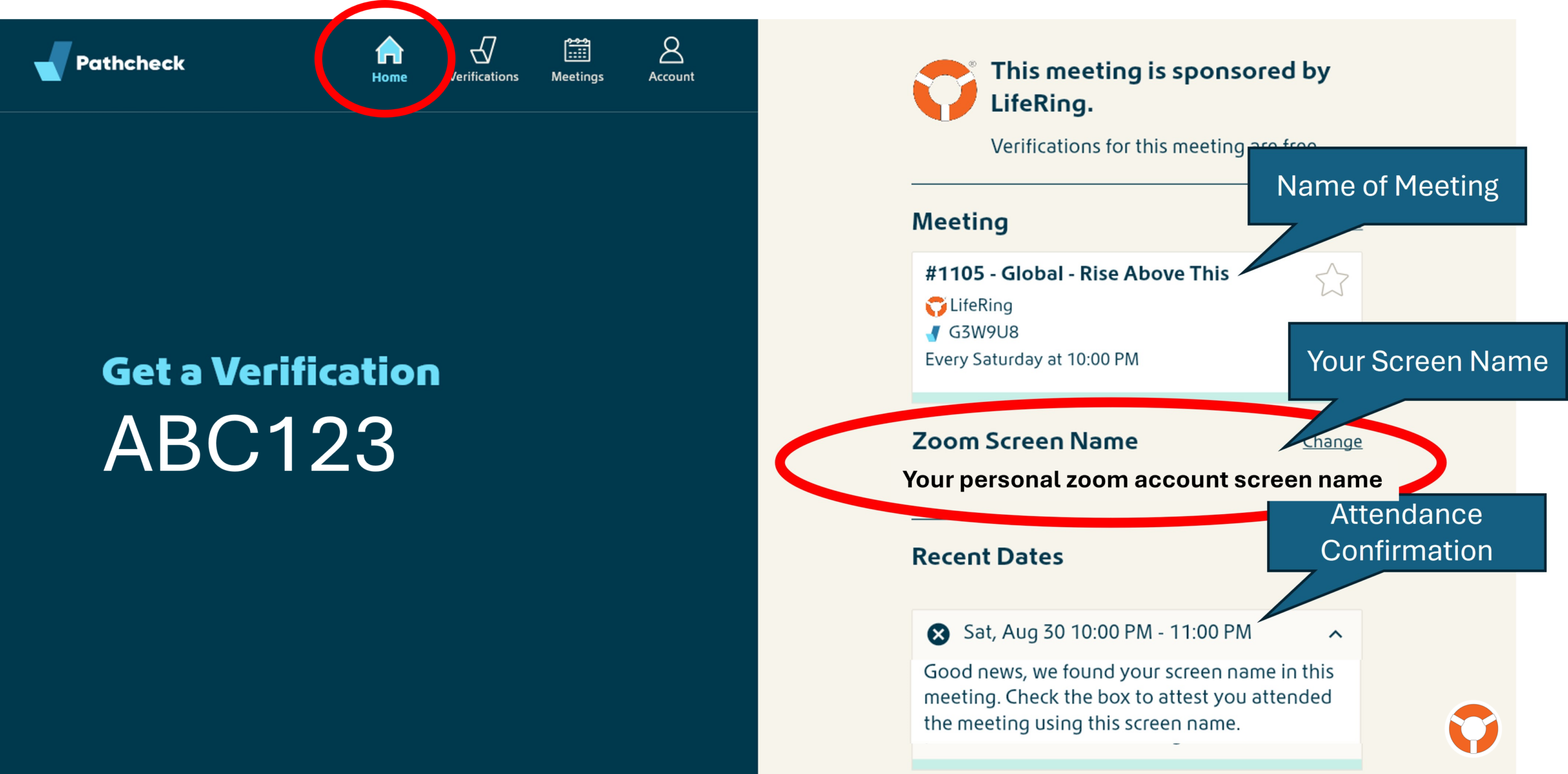
- This will take you to the appropriate Get a Verification confirmation page:

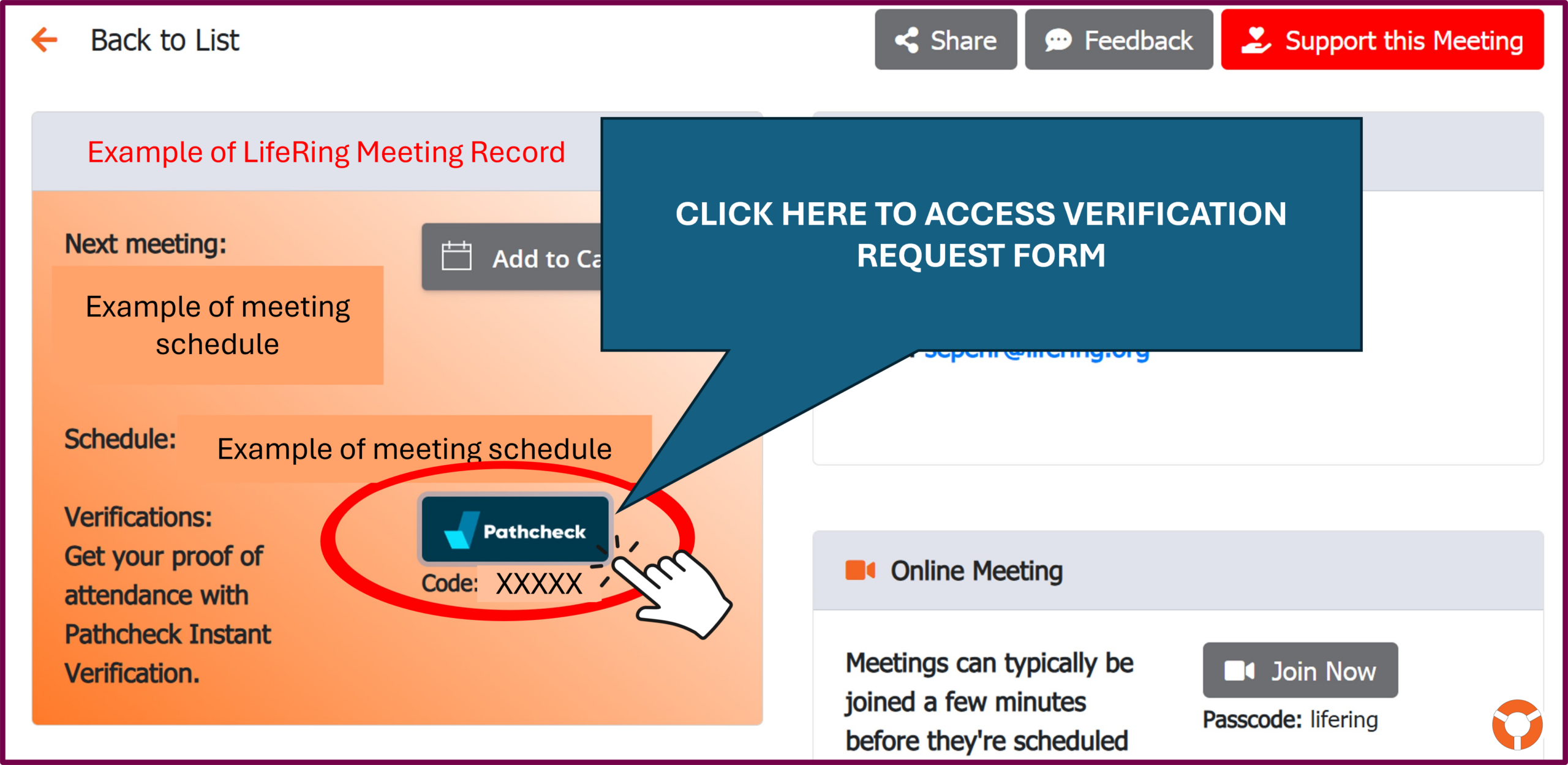
If you are unable to find the meeting listed on the Instant Verification Form, the link to the Meeting Attendance Verification form is also posted on the meeting record:

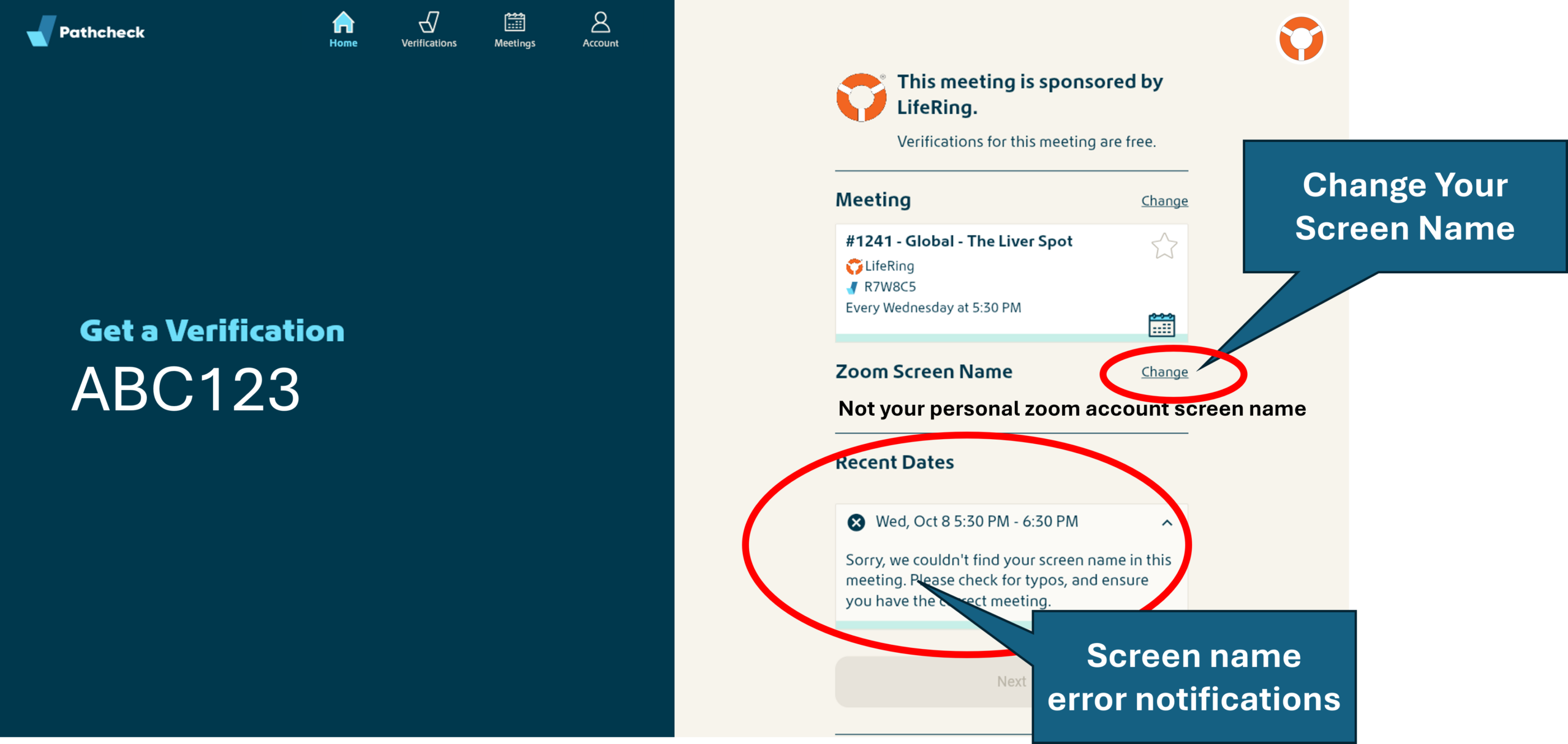
- If you were not in attendance or the screen name you signed in with does not match the screen name listed on your Verification Account, you will receive a screen notification. You can make adjustments directly to the Get a Verification confirmation page:

If you are unable to remember the screen name you used to log in, you can find step-by-step directions to help you manage screen name information and changes here.
- Once approved, a meeting attendance verification will be sent to the email address listed in your Pathcheck account.
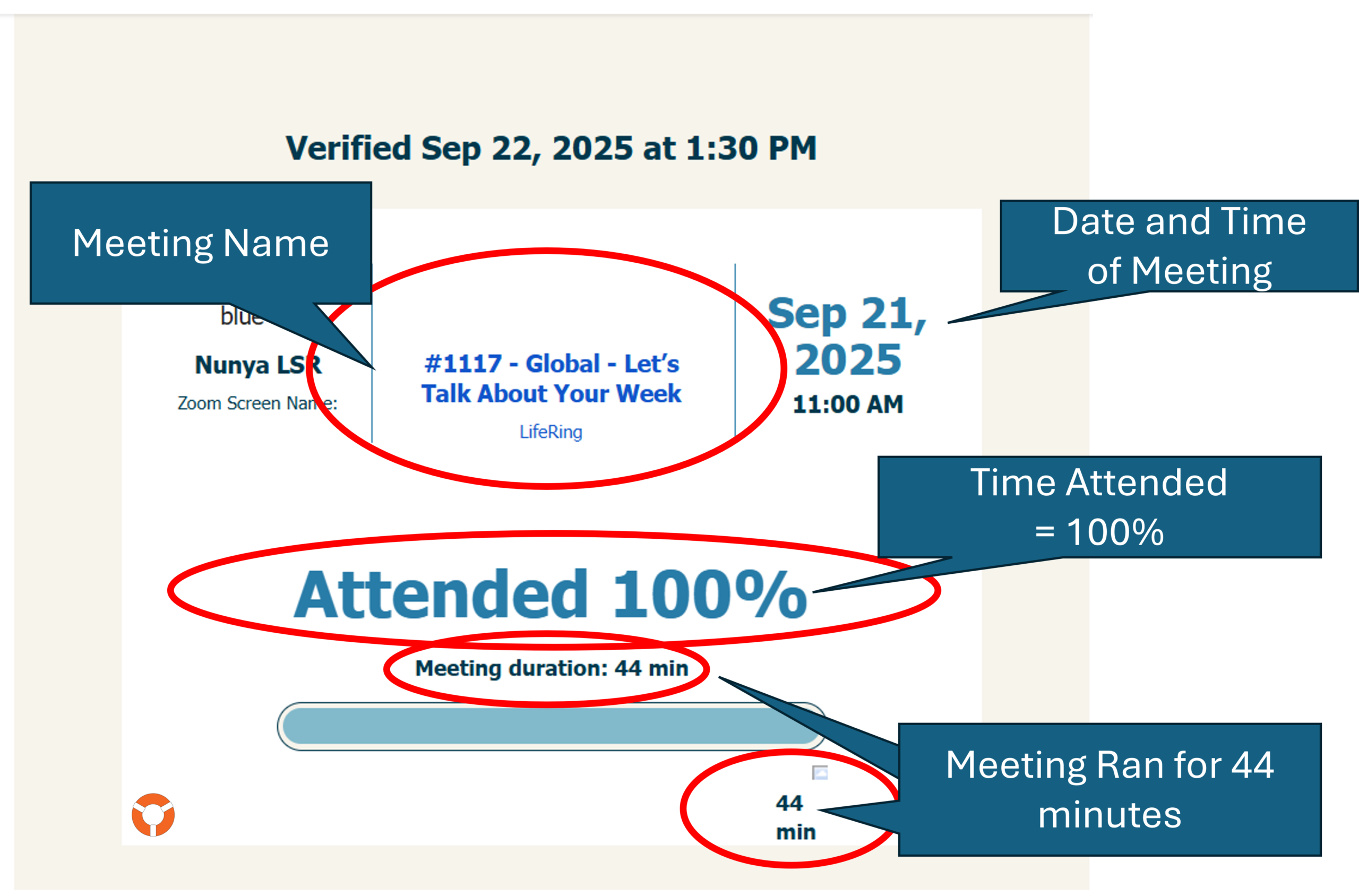
Email Subject: Pathcheck Verification for [your name] (verification number and date):
- Here's the anatomy of a LifeRing Meeting Attendance Verification. Note that this meeting ran for 44 minutes, but the record shows 100% attendance.

Your attendance report reflects the percentage of time you were logged into the active meeting.
- If you are present for the entire duration of the meeting, from start to finish, you get 100% attendance credit. This is true even if the meeting ends earlier than scheduled. The "end time" is simply when the meeting officially concludes or the scheduled end time, whichever comes first.
- If you leave the meeting before it ends, your attendance credit will be a percentage less than 100%. Attendance time is calculated on the total scheduled time the meeting was active versus the amount of time you were present.
If you feel your attendance time does not accurately reflect your attendance, please reach out directly to Pathcheck using their support form or email [email protected].

.
Resolving Common Issues
Additional solutions can be found on our Verifications FAQ webpage
- Meeting verification record is missing:
If you cannot find the verification record, it is either because the meeting has not been closed or the data has not yet been uploaded to Pathcheck. Please check back later. Please note that actual meeting end times may be later than scheduled end times to support additional shares or extended topic discussions. See Verification Management above.
- Pathcheck can't find your screen name for a specific meeting:
Your Zoom Screen Name must match the screen name that you used when you logged in. Look on your personal Zoom account profile to find your default screen name.
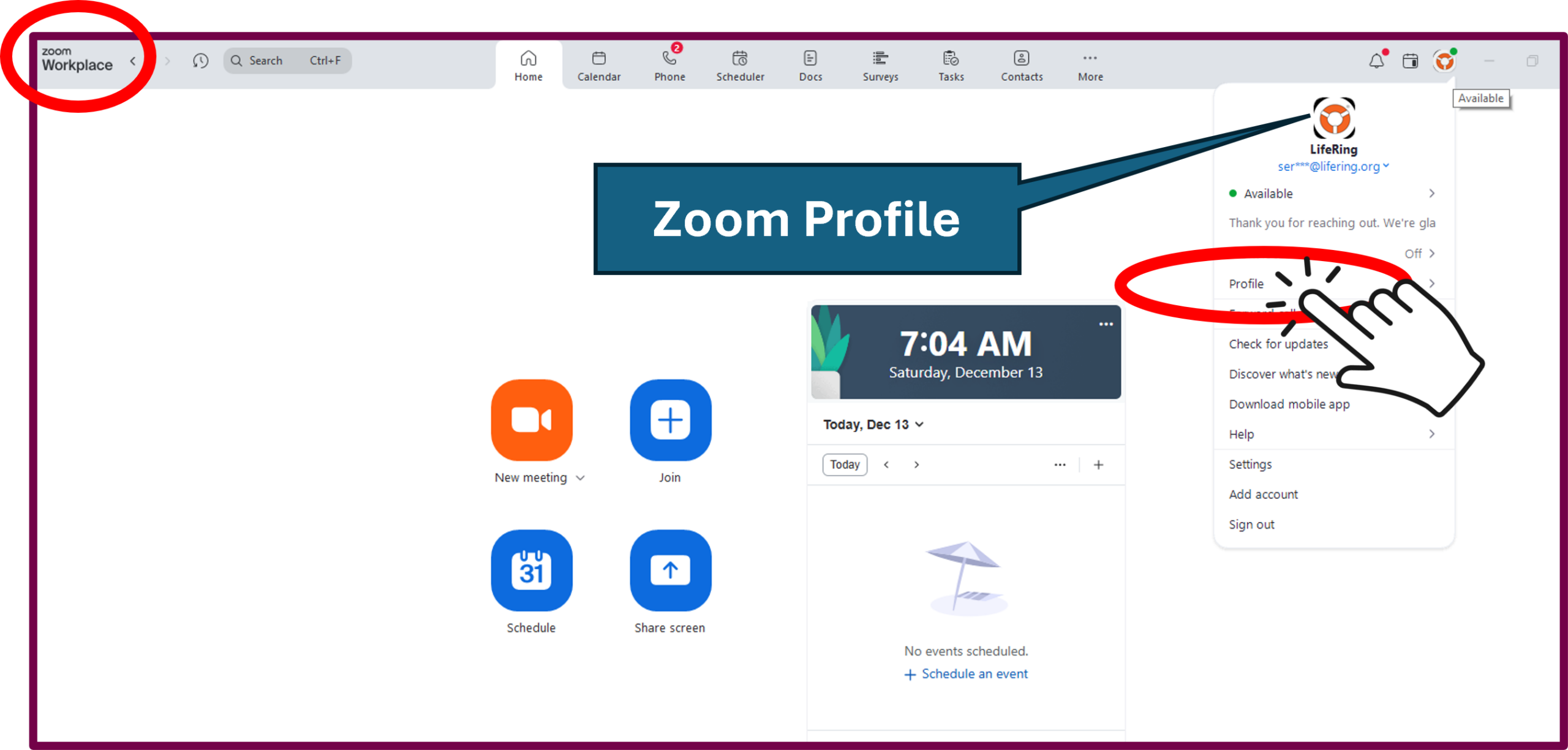
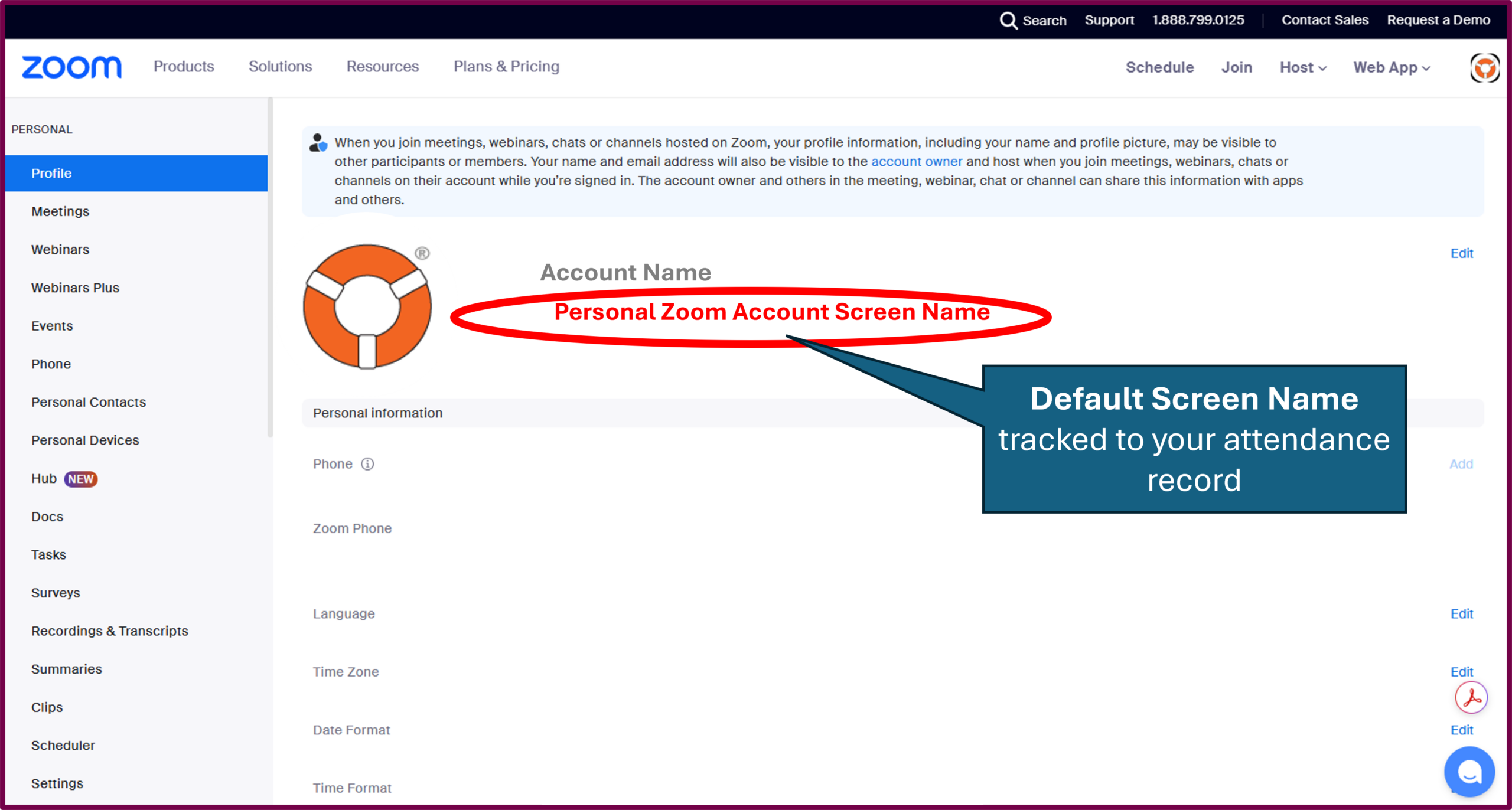
SmartPhone:
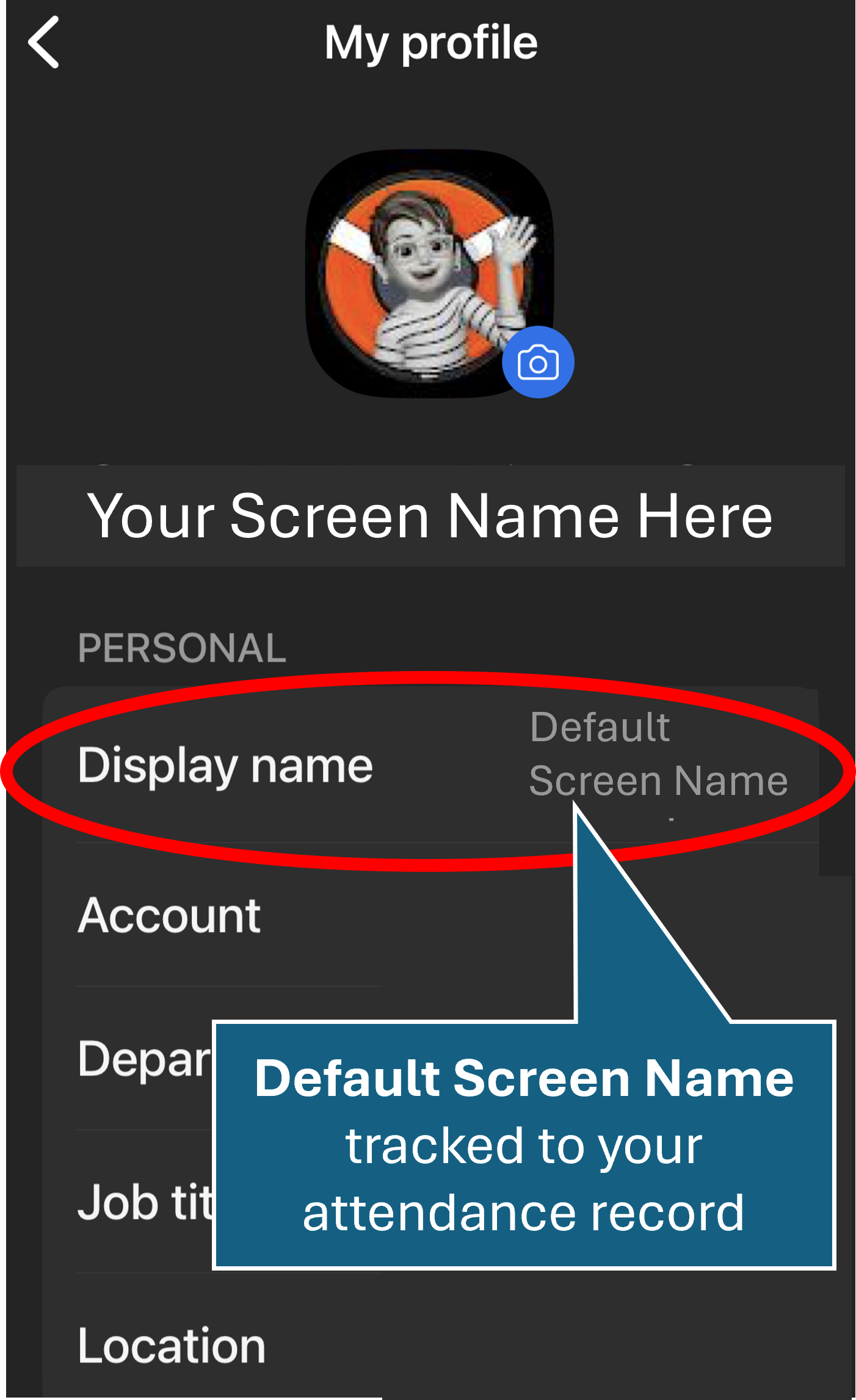
Here are step directions to help you manage screen name information and changes.
- Verifications for meetings held more than 7-days ago:
Verification attendance reporting is a free service if you submit verifications within 7 days of the meeting. If you need verifications for meetings outside of that window, Pathcheck offers additional verification management plans you can explore. - Attendance time discrepancies:
If you feel your attendance time does not accurately reflect your attendance, please reach out directly to Pathcheck using their support form or email [email protected].
.
Additional Resources
- All About Verifications Video | Mobile
- All About Verifications Video | Laptop
- LifeRing Meeting Attendance Verifications FAQ
- General Questions: LifeRing Verification Support | [email protected]
- Questions about attendance time or missing verification emails: Pathcheck Support | support form or email [email protected].
Do you have any questions about how Pathcheck integrates with LifeRing, or other ways to manage your meeting verifications? Reach out to [email protected].